Code History and Checkpoints
Buildify automatically saves the history of your project as you work. If something goes wrong — or if you just want to go back to a version you liked better — you can restore any previous state with a single click.
What are checkpoints?
A checkpoint is a saved snapshot of your project's code at a specific moment in time. Buildify creates checkpoints automatically as the AI makes changes, so you always have a trail of previous versions to fall back on.
Think of checkpoints like an undo history — but one that persists across sessions and captures entire project states, not just individual edits.
Viewing your history
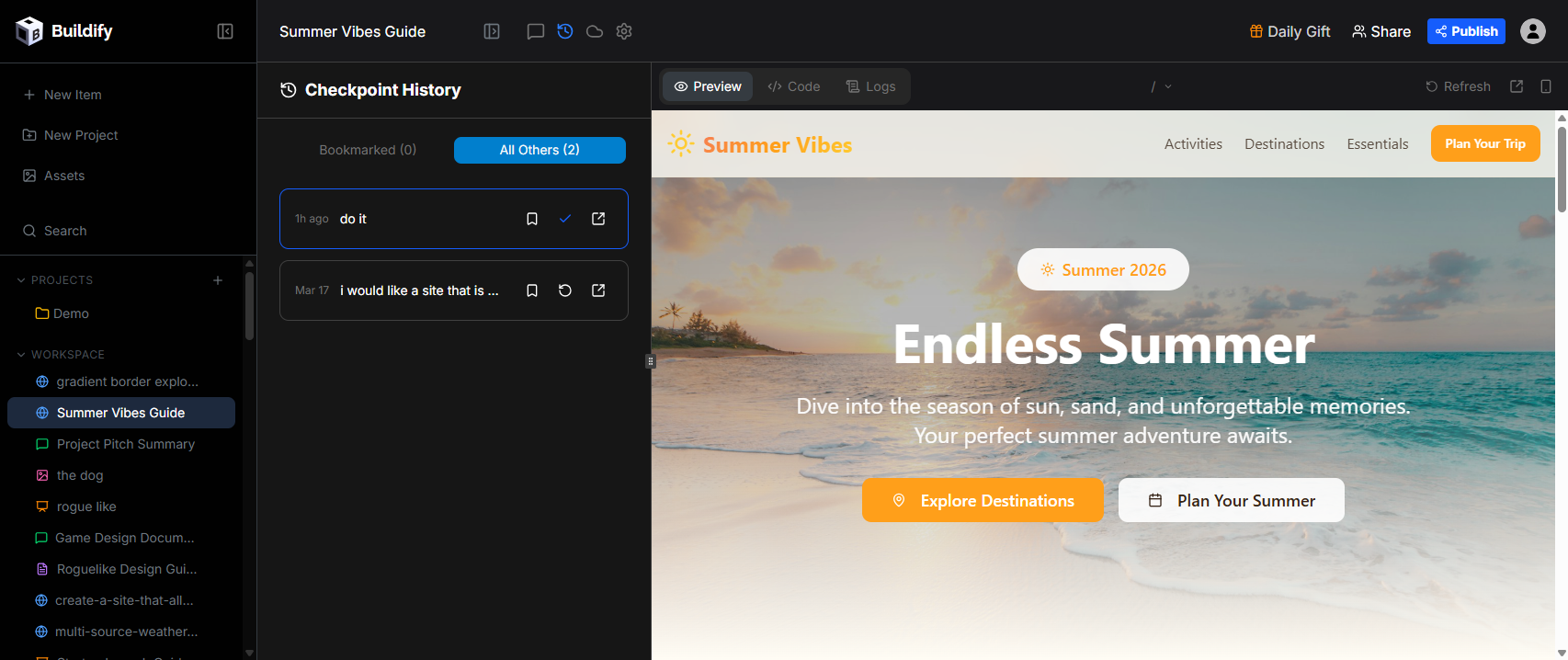
To see your project's history:
- Open your website project
- Click the Toggle history button (clock icon) in the workspace toolbar
- The Checkpoint History panel slides open, showing all saved checkpoints with timestamps and descriptions
The panel has two tabs:
- Bookmarked — Checkpoints you've manually saved as favorites
- All Others — All automatically created checkpoints
Restoring a checkpoint
To go back to a previous version:
- Open the Checkpoint History panel
- Find the checkpoint you want to restore
- Click the restore icon next to that checkpoint
Your project code will revert to that saved state. The live preview updates immediately to show the restored version.
Restoring a checkpoint replaces your current code with the older version. Any changes made after that checkpoint will be lost. If you're unsure, you can preview a checkpoint before restoring it.
When to use checkpoints
- Before a big change — If you're about to ask the AI to do a major redesign, note where you are in the history first
- When something breaks — If a recent change broke something and you're not sure what, restore to the last working state
- Comparing versions — Browse history to compare how the site looked at different points
Tips
- Checkpoints are created automatically — you don't need to save manually
- For more robust version control (branching, pull requests, etc.), connect your project to GitHub via the GitHub integration
Checkpoints in other project types
The history panel is available in Web App, Docs, and Slides projects. The panel title differs slightly by type:
- Web App — "Checkpoint History"
- Docs — "Version History"
- Slides — "Version History"
The behavior is the same in all cases: browse past versions, bookmark important ones, and restore any prior state with one click.