Previewing Your Site
Buildify gives you a live preview of your website that updates in real time as changes are applied. You can check how your site looks on different screen sizes without leaving the workspace.
The live preview panel
The preview panel is on the right side of the workspace. It renders your website exactly as it would appear in a browser — including fonts, images, animations, and interactive elements like buttons and forms.
The preview updates automatically whenever the AI applies new changes.
Desktop and mobile views
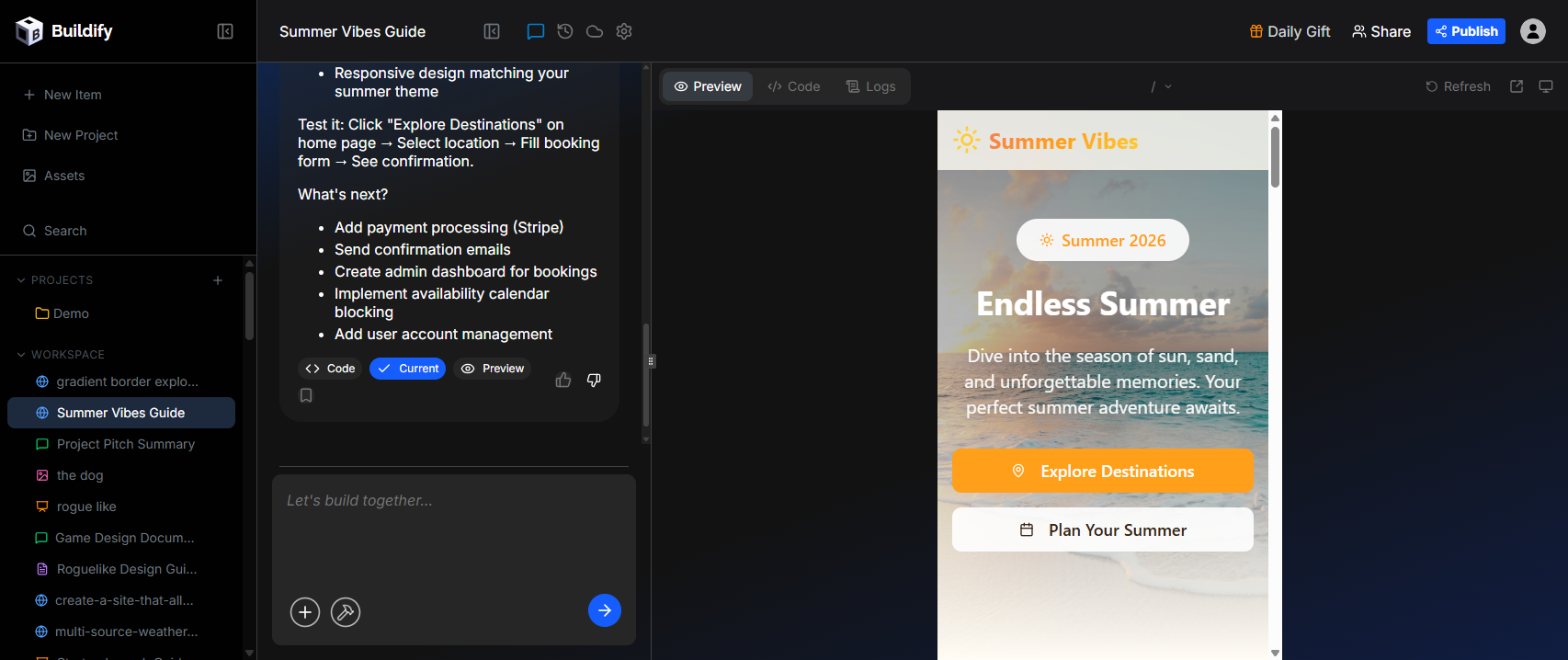
You can toggle between desktop and mobile preview modes using the view controls above the preview panel:
- Desktop view — Shows the site at a wider screen width, as it would appear on a laptop or monitor
- Mobile view — Simulates a smartphone screen width, showing how the site responds to smaller screens
Use both views to make sure your site looks good at all sizes. If something looks off on mobile, you can ask the AI to fix it: "The hero text is too large on mobile — can you reduce it?"
The preview toolbar
Above the preview panel you'll find:
- Preview / Code / Logs tabs — Switch between the rendered site, the code editor, and the runtime console
- Page URL bar — Shows the current page path (e.g.
/). Type a different path to navigate to that page in the preview without leaving the workspace - Refresh — Reload the preview if it gets stuck
- Open in new tab — Open the live preview URL in a separate browser tab
- Switch to Mobile view / Switch to Desktop view — Toggle between mobile and desktop preview sizes
Opening the preview in a new tab
You can open your site's preview URL directly in a browser tab for a full-screen view by clicking Open in new tab above the preview panel.
This is useful for:
- Sharing a preview link with others for quick feedback
- Testing interactive elements (like forms or page navigation) in a real browser context
- Checking the site on your phone by visiting the URL on your mobile browser
What the preview shows
The preview is a live render of your actual project code. What you see is exactly what would appear if the site were published — including:
- All text and images
- CSS styles and animations
- JavaScript interactions (form submissions, dropdowns, modals, etc.)
- Navigation between pages (if your project has multiple pages)
Limitations
- The preview runs in a sandboxed environment. Some external API integrations may behave slightly differently than in full production.
- Very complex JavaScript frameworks or server-side features may not fully render in the preview panel but will work correctly when deployed.